Ethical Tech
Moving Google Photos to Proton Drive: How I Took My Family Photos Back
The size of the job put me off. Moving about 25,700 photos from Google Photos to Proton Drive took me five days around my working week, most of it fixing dates. The steps I'd follow next time, and the mistakes to skip.
12 Nov 2026 · 10 min read · By Sophie
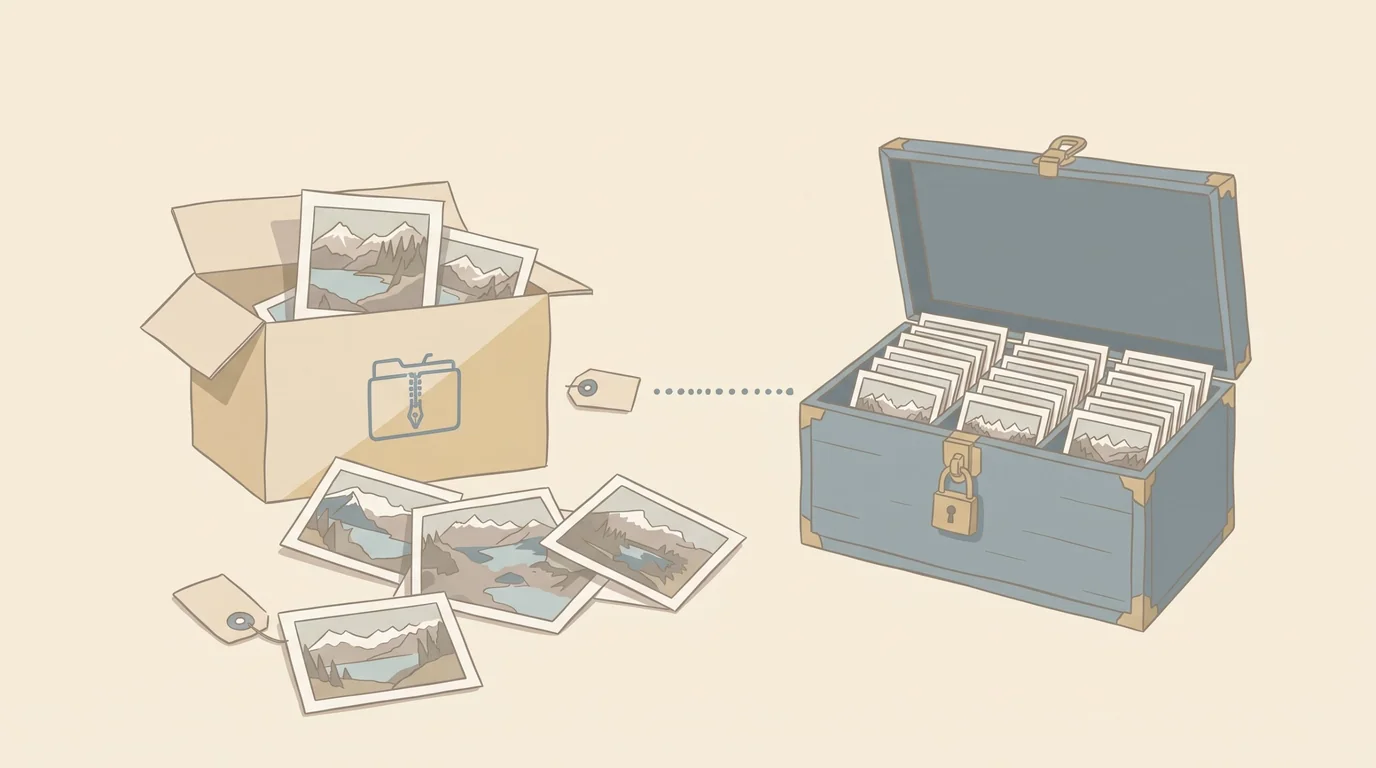
Moving more than a decade of family photos out of Google is a job that's easy to put off, and the size of it put me off. In November 2026 I finally moved my library, about 25,700 photos and videos, from Google Photos to Proton Drive. It took five days, from 8 to 12 November, fitted around my working week rather than set aside for it. The export and import took the first two. Fixing what they broke took the rest, largely because I'd deleted the files I needed to fix it. Now it's done, having my photos back from Google feels liberating.
Why I wanted my family photos out of Google
This was part of a wider move away from big tech, which I'm recording move by move in my Leaving Big Tech series. My business email, calendar and logins had already gone from Google Workspace to Proton (How to Leave Google); the family photos were what was left. Google had more than a decade of my family's photos, and I don't trust it with them: its record on privacy and the way it makes money from personal data don't sit easily with me. Google Photos encrypts what it stores, but it isn't end-to-end encrypted, so Google can still see the photos and process them for its own features (Proton's comparison). Proton Drive encrypts photos and their metadata, such as location and file names, on the device before they're uploaded, so only I and the people I share them with can see them (Proton).
The import looked fine until I checked the dates
The photo count looked right. The timeline didn't. About 2,100 old photos, some from 2013, were filed under "This Month", because Proton had dated them to the day I uploaded them. Two videos from November 2016 appeared in January 2036. And where Takeout had exported 38 album folders (Google's Archive and Trash among them) and 21 year folders, I had 135 albums, many of them three times over under names like "Trip to Ballater", "Google Photos Trip to Ballater" and "Takeout2 Google Photos Trip to Ballater", each holding a different slice of the photos.
Why Google Takeout loses your photo dates
Google doesn't store a photo's date inside the photo. It keeps it in its own database, and Takeout exports it as a small JSON file beside each image. Photos taken with a phone camera usually carry their date inside the file as well (EXIF data), so they survive any move. WhatsApp images, screenshots, Facebook and Messenger saves, edited copies and the animations Google makes often don't, and the JSON file is their only record of when they were taken.
Takeout splits a large library into several zips, and it doesn't keep each photo in the same zip as its JSON file. Mine came as four: three of about 53 GB and one of 21 GB. When I checked them afterwards, 2,085 photos had no date inside the file and had their JSON in a different zip, almost exactly the 2,095 that had landed in This Month. Proton's importer used a date file when it found one beside the photo, and otherwise fell back to the upload date. The same split produced the triple albums, because each zip held part of every album folder. Proton's Google Photos import guide warns about this.
Two limits make it hard to repair afterwards. Proton Photos has no way to change a photo's date once it's uploaded, and no way to merge albums. You can add photos to an album from the timeline and remove them from another (Proton's guide), so a split album can be put back together, but only by picking out its photos by hand.
How to move Google Photos to Proton Drive, step by step
Step 1Find a big external drive and stop the laptop sleeping
My Google Photos library was 123 GB, but the export came to about 180 GB of zips, because Takeout puts a photo in every album it belongs to as well as in its year folder. You need room to unpack them too, so plan on an external drive with space to spare. Set the computer never to sleep while plugged in (on Windows: Settings, System, Power). Downloads and imports run for hours, and a sleeping laptop stalls them.
Step 2Export your library with Google Takeout
At takeout.google.com, deselect everything, tick Google Photos, and choose .zip with the largest part size, 50 GB. Bigger parts keep more photos together with their date files, although at 50 GB mine still split into four. Google emails the download links, and they work for one week.
Step 3Download every zip, and delete none of them
Save each zip straight to the external drive and check its size against the Takeout page. At the 50 GB setting each full part came to 53.2 GB (Windows shows this as 49.6 GB, because it counts in binary units), and on my connection each one took 11 to 13 hours to download. Downloading them overnight leaves the computer free during the day, since a download that size slows everything else down. With the links lasting a week, start as soon as Google's email arrives.
Keep every part until the move is finished and checked. I deleted three of my four after the import to free up space, and getting them back meant downloading 160 GB again, which took a day and a half.
Step 4Put the dates back into the files before you upload
This is the step I skipped. Google Photos Takeout Helper, a free open-source tool, reads the zips, writes each JSON date into its photo and merges the parts into one set of folders. A maintained version, GPTH Neo, works directly from the zips and offers several ways of handling albums. I didn't use either, so I can't vouch for every option, but they exist for exactly this problem. Run them on copies: the original moves files as it works.
Decide about motion photos now too. Samsung's Motion Photo setting (and Apple's Live Photos) records a two- or three-second clip with each picture, and Takeout exports the clip as a separate video beside the still. Proton then lists each clip as a video of its own, cut off from its photo. I had 818. They were in HEVC, a format Chrome can't display, so in Proton's web app each one was a grey tile that played two or three seconds of sound with no picture. With nothing to match the sound to, I deleted them all. In my export every one ended in an upper-case .MP4 with a .jpg of the same name, which makes them easy to remove before importing.
Step 5Import into Proton Drive and clear out the extra albums
The Proton Drive desktop app for Windows has a Google Photos import that builds albums from folders and skips duplicates (Proton's guide). It will also turn Google's year folders ("Photos from 2018" and so on) into albums, which duplicate the timeline. Deleting an album in Proton removes only the grouping, never the photos (Proton's help page), so clearing those out is safe.
Step 6Check the dates, not just the count
Before deleting anything from Google, look at the top of the Proton timeline. A pile of old photos dated to the upload day, or anything dated in the future, means dates were lost. Spot-check a few pictures whose dates you know, especially WhatsApp images and screenshots.
Step 7Point your phone's backup at Proton
In the Proton Drive app, turn on backup from the Photos tab. Only the camera folder is included by default, so add others such as WhatsApp under Settings, Photo backup (Proton's guide). On a Samsung phone, set the app's battery use to Unrestricted so Android doesn't pause it. Once new photos are arriving in Proton, turn off backup in Google Photos (profile picture, Photos settings, Backup).
Step 8Delete from Google last
Keep the Takeout zips on the external drive as a copy outside both services. They are also the only copy that still has Google's albums and dates.
How to delete all your photos from Google Photos
Google Photos has no "select all" button, and it can't be removed from an account on its own the way YouTube can (TechRadar's guide), so clearing a library means selecting everything yourself and then emptying the Bin. I cleared about 25,700 photos and videos this way in November 2026, once the move to Proton was checked. It wasn't easy, and it had to be done in batches rather than in one go. That's fewer than the files in my Takeout export, because Takeout adds a copy of a photo for every album it's in.
Once the Bin is emptied the photos are gone for good, so have two copies elsewhere first: the Takeout zips on a drive you control, and the whole library in your new service, checked. Switch off backup in the Google Photos app on every phone, or it will quietly upload new pictures again. Deleting in Google Photos also deletes from every device that syncs with it (Google's help page), so a phone that still shows its camera roll through the Google Photos app loses those copies too.
By handSelect in batches on a computer
Ctrl+A does nothing on photos.google.com. Shift-click selection works, but it fails in two common ways. You have to click the small tick circle in the top-left corner of a photo, because clicking the thumbnail opens it. And the page only loads thumbnails as you scroll near them, so dragging the scrollbar straight to the bottom leaves everything in between unloaded and the range doesn't register.
For a few thousand photos, work in batches. Tick the newest photo, scroll down steadily a few months at a time, then hold Shift and click the tick circle of a photo further down; everything in between turns blue. Delete each batch before starting the next. Each date heading also has its own tick circle that selects the whole day, which is the quickest way to tidy up the edges of a batch. With tens of thousands of items selected, the page pauses for a few seconds at a time.
With a scriptLet the browser tick every date
For a large library, a short script pasted into Chrome's console can tick every date heading while it scrolls down the timeline. It only selects; it never deletes. On my 25,700 items it took 10 to 15 minutes. Open photos.google.com in Chrome on a computer, in a window you leave in the foreground, since background tabs stop loading thumbnails and the script stalls. Press F12 (Cmd+Option+J on a Mac) and open the Console tab, type allow pasting if Chrome asks, then paste the script and press Enter. The counter at the top left of the page climbs as it works. When the console prints Finished, leave the page alone: clicking a photo or pressing Esc clears the selection.
(async () => {
  const sleep = ms => new Promise(r => setTimeout(r, ms));
  const heads = () => document.querySelectorAll('[aria-label^="Select all photos from"]');
  let box = heads()[0];
  while (box && !(box.scrollHeight > box.clientHeight + 50 &&
         /auto|scroll/.test(getComputedStyle(box).overflowY))) box = box.parentElement;
  box.scrollTop = 0; await sleep(1500);
  while (true) {
    for (let i = 0; i < 40 && !heads().length; i++) await sleep(150);
    for (const h of document.querySelectorAll('[aria-label^="Select all photos from"][aria-checked="false"]')) {
      h.click(); await sleep(20);
    }
    if (box.scrollTop + box.clientHeight >= box.scrollHeight - 5) break;
    box.scrollTop += box.clientHeight * 0.9; await sleep(300);
  }
  console.log('Finished');
})();
The script relies on the labels Google currently gives the date-heading tick boxes ("Select all photos from Monday" and so on). They are the English labels, so Google Photos needs to be set to English, and if Google changes them the script finishes having selected nothing. Before deleting, scroll to the oldest photos and look for any without a blue tick. "Highlight" cards above some dates can show an empty circle, but they point to photos that are already selected.
LastBin them, then empty the Bin
With the photos selected, click the bin icon at the top right and then Move to bin. With thousands of items the page shows a progress message for a while, so leave the tab open until it clears. Nothing is gone yet: items stay in the Bin for 60 days and still count towards your storage. Open Bin in the left sidebar and click Empty bin to remove them for good. That is the step you can't undo.
The main view doesn't show everything, so check Archive and Locked Folder in the sidebar and clear them the same way. Albums need no separate step, because they hold the same photos as the timeline and empty with it. The storage figure at the bottom of the sidebar falls once Google catches up, which can take a day.
How long it took: five days around a working week
8 and 9 November: Takeout export and import into Proton with the desktop app, then three of the four zips deleted.
10 November, early morning to evening: finding the problems, clearing 61 junk albums, working out why the dates had gone, then downloading the misdated photos back out of Proton in batches to re-date and re-upload them. Two batches, about 550 photos, took the whole day. Proton's web app stalled on large downloads (one of 2.8 GB stopped at 38%) and froze with several tabs open.
10 and 11 November: downloading the three deleted Takeout parts again, at about 53 GB each.
11 November, late evening: with the zips back, about 1,100 photos were re-dated from Google's own date files in a few minutes and uploaded in one go, and the misdated originals went to the bin.
12 November, after midnight: edited copies, which have no date file of their own, and the 818 motion-photo clips.
None of this was a dedicated block of time. Downloads and uploads ran in the background while I worked, and I fitted the fixing in around everything else. Had I kept the zips and fixed the dates before uploading, the re-downloading and re-dating of 10 to 12 November wouldn't have been needed. My phone now backs up to Proton, Google's backup is off, and once I delete the library from Google it will no longer hold my family's photos.
Five mistakes that turned two days into five
Deleting the Takeout zips straight after importing. They held the only reliable dates for more than 2,000 photos, and replacing them cost a day and a half of downloading.
Uploading before fixing the dates. Once a photo is in Proton its date can't be changed, so every fix meant a new upload and a deleted original.
Trusting the photo count. It was right. The dates weren't, and I only noticed because two videos were sitting in 2036.
Deleting photos by hand while the fix was half done. I binned several hundred old screenshots in the middle of the re-dating, when corrected copies of some were already uploaded and others were sitting in batches waiting to go. A few came back in their proper years. Decide what to delete before you start, or leave it until the end.
Running long jobs in a background window. Chrome slows tabs that aren't in front, and Proton decrypts everything in the browser, so downloads and long sorting jobs stalled whenever the window was hidden.
How to fix wrong dates after importing into Proton
Proton can't edit dates, so the fix is to correct the files and upload them again. Work out which photos are affected (the pile under This Month), take those files from the Takeout zips, or download them back out of Proton if the zips are gone, and write the real date into each. Use the JSON file where there is one; otherwise the file name usually holds the date (IMG-20200211-WA0000.jpg was taken on 11 February 2020, and the number in FB_IMG_1611078650094.jpg is a timestamp). Edited copies such as IMG_1234-edited.jpg take the date of their original. Upload the corrected copies, check they land in the right years, then move the misdated originals to the bin, matching them by file name. If you still have the zips, Google Photos Takeout Helper does most of this.
I didn't do this sorting by hand. I used Claude, Anthropic's AI assistant, which could work on files on my laptop and in my browser once I'd granted access to each folder. It checked the four zips, matched 2,085 photos to date files sitting in other zips, wrote Google's dates into more than 1,100 copies in a few minutes, and later found the misdated originals in Proton by name so they could go to the bin. I uploaded each batch and approved every deletion. Without that help I wouldn't have had the time to fix it at all. It still took days, because most of the waiting was on downloads and on Proton's web app, not on the sorting.
Questions about moving your photos
- Can I move my Google Photos somewhere other than Proton?
Yes. The date problem comes from Takeout, not from Proton, so steps 1 to 4 apply wherever the photos are going. I chose Proton because my email and calendar were already there.
Ente is built only for photos. It encrypts photos and all their metadata on the device (Ente's security FAQ) and keeps three copies in three locations. The company is Ente Technologies, Inc., registered in the US (privacy policy), and its code is open source.
Filen is a German cloud drive with end-to-end encryption and servers in Germany (Filen's whitepaper). It's general file storage with automatic photo upload, rather than a photo library with albums and faces.
Immich is free, open-source software you run on your own server or home computer. It's the closest match to Google Photos in features and reached a stable release in 2025, but you become responsible for the hardware, updates and backups, and it doesn't encrypt your photos itself.
iCloud Photos becomes end-to-end encrypted if you switch on Apple's Advanced Data Protection, which is off by default (Ente's explainer). It keeps you with a big US company, though.
If your business tools are part of the same question, my Where does your data live? map shows who owns each tool and where it keeps your data.
- How much space do I need?
My Google Photos library was 123 GB, and the Takeout export came to about 180 GB of zips, with unpacking needing that again. A 500 GB external drive is comfortable for a library this size.
- Will my Google albums come across?
The Proton desktop app turns folders into albums, so they arrive, but split into one album per Takeout part if the album's photos were spread across several zips. Merging the folders before importing, or using a tool that does it, avoids that. Afterwards, Proton has no merge option: you add the photos to one album by hand from the timeline, then delete the empty copies.
- What about Motion Photos and Live Photos?
Takeout exports the moving part as a separate short video, which in my case played as sound with no picture. Decide before importing whether you want them, because removing hundreds of clips from Proton afterwards is tedious.
- When is it safe to delete my photos from Google?
When the new library's dates are right, your phone is backing up to the new service, and the Takeout zips are on a drive you trust. Google keeps everything until you delete it, so there's no rush.
- Did you move your Facebook and Instagram photos too?
That was a separate move, covered in How to Leave Meta, including how to export your photos first.
Sources
Proton: How to import from Google Photos into Proton Drive
Google: Delete photos and videos
TechRadar: How to delete all your Google Photos
Proton: How to delete an album in Proton Drive
Proton: How to enable photo backup
Proton: Is Google Photos safe?
Google Photos Takeout Helper on GitHub
GPTH Neo on GitHub